
Sitefinity search facets group search results by specific fields, making it easier for users to refine their searches when a large number of results match the original query. This feature enhances the search experience and improves content discovery on your site.
Benefits of Using Facets
- Enhanced Search Refinement: Facets allow users to filter search results by categories, tags, dates and more, helping them narrow their focus and locate relevant content more quickly.
- Improved Content Discovery: Facets promote exploration by revealing related content fields, making it easier for users to discover new articles or products.
- Boosted Relevance: Search results are tailored to user preferences, increasing relevance and reducing unwanted results.
Drawbacks to Consider
- Filter Refreshing: When deselecting filters, some options may disappear until the page is refreshed. This is an inherent behavior in Sitefinity facets, so keep this in mind during implementation.
Key Considerations for Implementation
- Compatibility: Facets are not compatible with Lucene search; instead, they require Elasticsearch or an Azure search service.
- Consistent Field Names: Facets can only filter across multiple content types (e.g., News, Blogs, Dynamic Content) if the target field has an identical name and type across all types. Otherwise, a custom shared field needs to be created.
- Styling Requirements: Facet views require custom styling for optimal display.
Steps to Implement Facets
1. Update the Search Index
- Identify which field(s) you want to make facetable.
- In Sitefinity’s backend, navigate to the relevant Search Index.
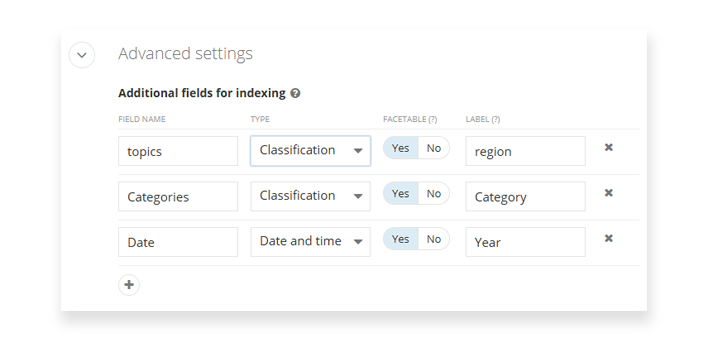
- Open Advanced Settings and add a new item under "Additional fields for indexing."
- Enter the field name (case-sensitive), type, select it as facetable, and give it a label for front-end display.
- Re-index the search index to apply these changes.
Below is an example of custom facetable fields added to a search index
2. Add the Facets Widget to Your Search Page
- Edit the search page where you want facets to appear.
- Add the Search Facets widget, ideally above or to the side of the search results.
- Configure the widget by selecting the search index and facetable fields you added earlier.
- Save the page to enable basic facet-based filtering.
- The facets view may still require customization or additional styling.
Using Facets
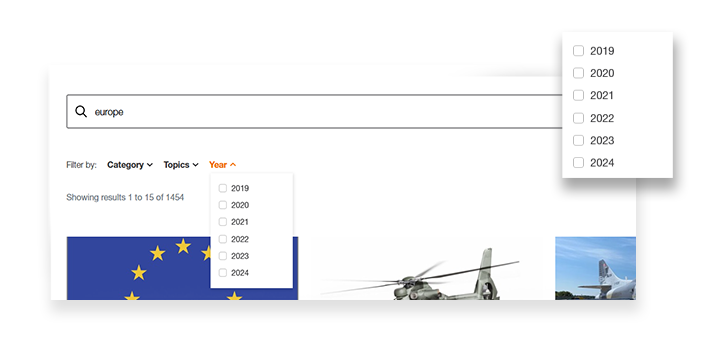
When users perform a search, they’ll see checkboxes for the configured facetable fields, allowing them to filter results based on selected options. By default, facets are displayed as checkboxes, suitable for fields with limited options. If more options are required, consider customizing the widgets view to display dropdown selections for better usability.
Below is an example of how facets can looks after being implemented and styled
Filtering Multiple Content Types
In cases where you want to filter by content type (e.g., filtering results to show only “News” among both News and Blog results), the solution is the same and achieved through a custom field.
This custom field is created for each content type by extending the content inbound pipe in the backend. This shared field, marked as facetable, can then be used in the Search Facets widget for cross-content filtering.